WordPress Introduction Course at Clark College Continuing Education October 16, 2012

Starting October 16, 2012, I’m presenting the Introduction to WordPress at Clark College Corporate and Continuing Education in Vancouver, Washington.

The CTEC 280 Clark College WordPress Introduction course continues as a four credit course. This is the college level course for WordPress users wanting to learn how WordPress works and how to use it better for half the price and no degree credits or college registration required.

REGISTER:
Clark College Corporate and Continuing Education
The Introduction to WordPress
6-8PM October 16 – December 6
Columbia Tech Center in Vancouver, Washington
$299 Item # F257
Register: Online or call (360) 992-2939

The Clark College Corporate and Continuing Education program, The Introduction to WordPress, is a slightly scaled down version of the full credit course. It is a thirty hour course designed for anyone looking to learn how to use WordPress for a personal or business website. It covers the basics on how to use the WordPress platform including installation, content management, configuration, SEO, and user experience strategies. The course also covers more advanced areas including WordPress Themes, Plugins, and advanced settings. No prerequisites are required, though familiarity with web browsers and web pages in general is highly recommended.

The Clark College CTEC 280 WordPress Introduction course will be offered Winter Quarter. If you are interested in the course as part of a degree or business education course, contact Reesa McAllister, CTEC offices, at 360-992-2456 to learn how to register and/or get on the waiting list for the class announcement.

What is a Website Call to Action?

Call to action button called click me with quote that says go on, you know you want to.What is a “call to action” on a site?

Call to action in web design — and in user experience (UX) in particular — is a term used for elements in a web page that solicit an action from the user. The most popular manifestation of call to action in web interfaces comes in the form of clickable buttons that when clicked, perform an action (e.g. “Buy this now!”) or lead to a web page with additional information (e.g. “Learn more…”) that asks the user to take action.
Call to Action Buttons: Examples and Best Practices by Smashing Magazine

It is literally a visual hint (or shout) that encourages a user to click or take some form of action.

Calls to action are used to:
Continue reading

Public Domain, Free Photography and Images for Your Blog

Originally published on Lorelle on WordPress and used here with permission. This list is for my classes and workshops needing public domain, royalty free images for their projects.

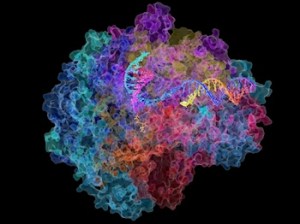
Colorful brain scan of a mouse - US Science Departments, public domain photographs

Colorful brain scan of a mouse.

I’ve been collecting a variety of resources for free photographs to use on your website and blog. These images are, for the most part, free to use, but may have copyright and usage restrictions. Some may require registration, use only on non-commercial sites, and/or a link back to the source. Others may require more. Check thoroughly for the specific usage rights before using any of these images.

Just because you select a filter for public domain and royalty free images on a Google Image search does not mean these images are actually public domain and royalty free. Check. Ask first, they might say yes.

is a major resource for images, but many of these have restricted use. Not every image on Flickr or the web is free to use. Check thoroughly for usage rights, and if in doubt, get permission or don’t use the image. Check out Flickr’s Public Domain Photos’ Photostream for images specifically marked as public domain.

Autumn Leaves - Morgue Files - public domain free photographs.The images featured range from people, places, wildlife, and space, as well as textures, patterns, and artistic graphic images. These free photos sites listed may have nude or violent images, though I did my best to exclude image sites which specialize in those.
One of the best, kept up-to-date lists for images and graphics in the public domain for free use is Wikipedia:Public domain image resources. I usually start my search from their list, which includes government collections and resources, special subject-based collections, and more.

Continue reading

The Basic Structure of a Blog Post

There are many ways to present a post or article on a web page. This tutorial will cover the basic formatting, styles, and structure.

The structure of an article or content on a web page is the same for any web publishing platform. This article focuses specifically on WordPress but the principles apply whether you are on Blogger, Google+, LinkedIn, Drupla, Joomla, Facebook, or a forum.

If an article is long, and this is, and divided up into separate sections, a table of contents consisting of jump links that jump down to the section the reader wishes to get to first, or second, or whatever their reading preference might be.

The table of contents maybe a list within the article or featured in a box aligned to the right or left of the content area with text flowing around it, best left to those with some HTML and CSS skills.

Article Table of Contents

WordPress Tip: Every WordPress Theme handles the basic elements in a post differently, making the headings stand out in a variety of ways, adding borders around images or not, adding design elements to a blockquote…the list is long.

I recommend that you test your own WordPress Theme by writing a test post following the examples in this article, or you may use the Sandbox Post for Testing WordPress Themes. It is a text file with HTML code representative of all the HTML tags found in a blog post.

Formatting the Post in WordPress

Before we begin, I will be making references to the formatting toolbar found on the post and Page Edit Screens. It is blow the post title area and directly above the content textarea where you will write your post.

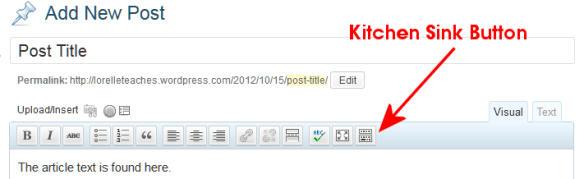
The WordPress Visual Editor Toolbar featuring the Kitchen Sink Button which expands to feature a second row.

By default, you see only one line of buttons in the Visual Editor. The last button on the row is called the Kitchen Sink or Toolbar Toggle. If you click it, a second row will drop down. Continue reading

How to Create Seamless Background or Tiled Patterns

One of the ongoing challenges web designers have is with background images. Background images are found within the background of a web page, specific DIVs, menus and navigation, sidebars, all over the place.

Example seamless pattern background image for tiles and tiling on web pages. Source - fractured-sanity.org.

A well designed pattern or texture that is seamless and tiles well is one that repeats gracefully in the background, complementing the purpose of the site and not distracting. A non-distracting background is one that is literally seamless, no distinction between the edges of the graphic. It doesn’t look like a bunch of repeating blocks. It is one smooth, evenly repeating pattern that is flexible, stretching into the background no matter what the width or length of the web page.

The process involves developing graphics that, when tiled together, appear as one single image, or a gentle repeating pattern. This is often done by selecting simple graphics and blurring the edge or positioning the elements to they bookend to each other, repeating the pattern over and over again.
Continue reading

Most Common Database and Programming Errors

WordPress, web database, and web designers need to pay close attention to these two articles from TechRepublic: “Five common programming mistakes” and “Five common database development mistakes.”

The first one deals with the most common programming mistakes, a few I’ve done myself. UI craziness and variable naming inconsistencies will often eat up my time as I resolve their issues.

The second article on database development mistakes addresses many of the issues I and others have with dealing with other people’s work. A missing mistake that should be on the list is a lack of inline documentation, the notes a developer should leave to not only remind them of what happened here and why choices were made, but informs future fixers of what is going on. Without these, we have to read the code like a book, and not everyone writes based upon readable standards. We spend too much time playing detective for the simplest of fixes.

A comment in the first article really caught my eye and sums up so much of what causes problems with the code.

This isn’t the tool’s fault — the error is between the keyboard and the chair. On the one hand, it speaks volumes about the quality of these tools that I trust them so much that I lost a lot of my vigilance; on the other hand, it is still my fault that I allow convenience to turn my brain off entirely. I have learned to slow myself down when using code completion and take the extra second or two to ensure that I have made the right choice.

The biggest problem is what is sitting in the chair – remember that next time you start blaming.

WordPress Links and Blogroll Feature Gone in WordPress 3.5

With the release of WordPress 3.5 soon, expect to see the WordPress Links feature, also known as the Blogroll, gone.

I’ve written more about this in “Blogrolls Gone in WordPress. How to Save Your Links” on .

The article includes an explanation of why as well as tips and techniques for exporting and saving your WordPress links, and how to display them in new ways within WordPress.

Tutorial: Tools for Evaluating and Testing Web Pages

There are many online tools, web browser extensions, and add-ons to help you evaluate and test web pages. We will be talking about web page validation later, but you can use these tools now to become familiar with such tools and how to integrate them into your web browser.

Most browser-integration tools are browser specific, compared to online tools which sit in web pages, accessible through any browser. Browser-integration tools include extensions, add-ons, and bookmarklets.

How to Add an Extension or Add-on to Your Web Browser

To add an extension or add-on tool to your browser:

Continue reading

Tutorial: How to Inspect, Edit, and Save a Web Page

This tutorial from the HTML Fundamentals Class I taught at Clark College in Vancouver, Washington, is a guide that will show you how to:

  • View the source code of a web page.
  • How to save a web page to your computer
  • How to view a saved web page on your computer
  • How to open a web page in your text editor
  • How to view the CSS/Stylesheet for a web page
  • How to inspect the HTML and CSS of a web page
  • How to view and edit a web page at the same time

To begin this tutorial, have your web browser and text editor open on your computer. It does not matter which browser or text editor you are using. The process is basically the same.

How to view the source code of a web page

  1. Go to a web page such as the test page for the class, Welcome to Lorelle VanFossen CTEC 122 HTML Fundamentals Class on the Clark Web Server.
  2. Right click on an empty space on the web page and choose View Page Source or View Source.
  3. The resulting popup window (or tab) will show you the underlying HTML structure of the page.
  4. You may save this to your hard drive or go back and save the entire web page to your computer.

Continue reading

Links and the Anchor HTML Tag

This is a tutorial from the HTML Fundamentals Class I taught at Clark College in Summer 2012. It applies to HTML and WordPress.

There are five basic forms of links on a web page.

  1. External Links
  2. Internal Links
  3. Jump Links
  4. Image/Multimedia Links
  5. Email Links

Link Basics

Links are the gateway to the web, the interconnected parts of the web that allows a web user to easily move from document to document.

A link consists of the following HTML tag structure.

<a title="Link to article title." href="http://example.com/article.html">Anchor Text</a>
  1. a: The HTML Anchor tag.
  2. title: It is required by US federal law and international law that all links have a descriptive title property. The value text must describe the destination link in a way that will inform the user of what the destination material is about and help them decide to click through. It should be no more than a few words and written in sentence form, a simple instructional form such as “Link to article on links.” This is read out loud by screen readers.
  3. href: The Hypertext Reference is the destination link. In general, it is typically an absolute link written with the full http: address such as http//example.com/article.html.
  4. Anchor Text: This is the text which the HTML Anchor tag wraps around. It is the visible element of the tag on the web page.

Continue reading