Cleaning Up Your HTML and CSS Code

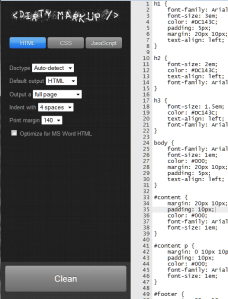
Dirty Markup interface for cleaning html, css, and javascriptTeaching HTML Fundamentals at Clark College in Summer Quarter 2012 was a step back into history and a good learning lesson for me about teaching but also about HTML.

I’m sharing a lot of the tutorials and guides I created for the class here which you can find in various categories but specifically under the HTML tag.

I’d like to share with you one of the great tools I uncovered. It’s called Dirty Markup and describes itself as the “Tidy and Beautify your HTML, CSS, and JavaScript code tool.”
Continue reading

Tutorial: Tidy Your HTML and CSS Code

The following is a tutorial for the HTML Fundamentals Class for Clark College. The information pertains to all web design, development, and WordPress fundamentals in WordPress Theme and Plugin development.

There programs designed to "tidy" your HTML and CSS into a format that meets typical standards for code layout. These take hard-to-read markup (code) and clean them up into a consistent format.

These tidy programs will not fix your broken code, but they may identify errors to help you fix it yourself.

Example of Tidy HTML cleaner before and after

Tidy programs were originally created by Dave Raggett to help clean up the HTML code. HTML TIDY now supports HTML5 and HTML exported from Google Docs, Word, and other publishing programs.

There is now a community supporting TIDY and you can learn more on TIDY Sourceforge Project.

There are also CSS TIDY programs. These work the same as the HTML versions. They include: CSSTidy and CSS Formatter and Optimiser/Optimizer (Online).

TIDY is available for cleaning up online or offline, and is incorporated into many text editors and programming editors. it is available for a variety of operating systems and in different programming languages such as Java, Perl, and Python.

To use these, follow the instructions provided by the developer. Always save a backup of the original file, called "about.bak" or something similar, just in case.

For online versions, it is as simple as uploading the file to be cleaned or pasting the file contents into the form. Copy the cleaned code and paste it into a copy of the file name or create a new version of the file and rename it to the desired name.

Learn More About TIDY

HTML and CSS Resourses List

The following was compiled specifically for the Clark College HTML Fundamentals Class but can be useful to WordPress and web design in general.

The following are helpful HTML and CSS references and resources.

W3C Guidelines and Standards

Basic HTML and CSS Resources and References

Continue reading

HTML and CSS Basics Tutorial [Video]

The following video is for Clark College’s HTML Fundamentals Class and covers the basics of HTML and CSS you need to know for building and fixing web pages. It also applies to understanding the underlying architecture for WordPress Themes.

CTEC 122 HTML and CSS Basics You Need to Know from Lorelle VanFossen on Vimeo. Continue reading

Web Browser Tips for WordPress, HTML, and Web Design

The following video contains useful web browser tips to help you speed you your browsing, WordPress, and web design work.

Basic Web Browser Tips by Lorelle VanFossen for Clark College from Lorelle VanFossen

Please note that the video refers to the Windows keyboard shortcuts using the CTRL key. This is the equivalent to the CMD key on Mac.

For mobile devices, long presses usually activate the equivalent of keyboard shortcuts and right clicks, though not all of them may be available in the apps you are using.

Here are some of the specific tips covered in the video.

  • Editing (just like in a word processor)
    • CTRL+C = Copy
    • CTRL+X = Cut
    • CTRL+V = Paste
    • CTRL+Z = Undo
  • CTRL+T = Open New Tab
  • F5 = Reload/Refresh Page
  • Zoom in and out of a web page (magnify): CTRL+Plus and CTRL+Minus
  • Right click on links on the page brings up the right click menu to access link specific options and features.
  • Right click on blank or empty spaces on a web page brings up the right click menu for page specific options and features.
  • Learn to open web pages in tabs not windows. This saves on computer memory issues and speeds up your browser process.
    • Use Mouse and Keyboard shortcuts: CTRL + Left Click on Link = Opens Linked Page in New Tab
  • Fast Navigation through Browser Tabs
    • CTRL+T = Opens New Tab
    • CTRL+1 = Goes to Tab #1
    • CTRL+ 2, 3, 4, etc. goes to that tab number
    • CTRL+Arrow = moves focus to next and previous tab
  • Working on web page design or WordPress? Refresh and you don’t see changes? You need to clear the cache and do a "hard" clearing page reload. F5 or SHIFT+F5 OR do a Cache Refresh
    • CTRL+F5 (Firefox and Chrome)
    • CTRL+Shift+R (Firefox)
    • CTRL + R (Chrome)
    • (You may have to repeat a couple times)
  • To view the source code of a web page: Right Click > View Page Source
  • Web Developer Tools